

Onit LEDES processing is how law firm invoices enter the Onit platform as structured files, with every time and expense line carrying UTBMS codes that the system checks before anyone in legal reviews the bill. Get the setup right, and your reviewers see only the invoices that need judgment. Get it wrong, and firms fight submission errors while your reports fill with uncategorized lines.
How does Onit use UTBMS codes and LEDES files?
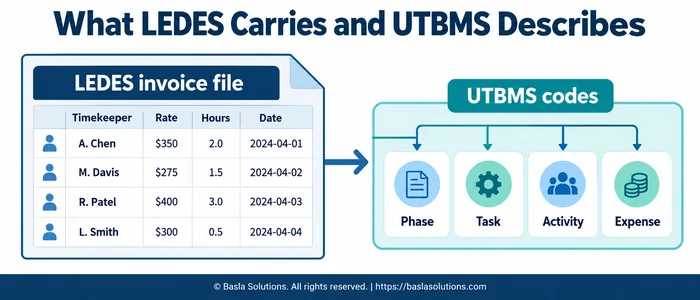
Onit uses LEDES files as the electronic format law firms submit invoices in, and UTBMS codes as the classification on each line that tells the system what work was done. The LEDES file carries the invoice, and the UTBMS codes give every line a phase, a task, and an activity.
In our implementations, firms uploaded LEDES files through BillingPoint, the law firm portal for OnitX at the time, which Counsel Exchange has since replaced as the place firms submit invoices. SimpleLegal clients run the same checks, covered in SimpleLegal eBilling. On upload, each line item is matched to a parent matter, and its task, activity, and expense codes are captured alongside the timekeeper ID, rate, hours or quantity, and date.
We enforced Onit LEDES submission before internal review on every build, so task codes, activity codes, and rate cards are validated automatically and no attorney spends time on a line the system could have rejected.
Which UTBMS code sets does Onit support?
Onit validates line items against the UTBMS code sets your department approves, typically the litigation, counseling, project, and expense codes, chosen per matter type during configuration. The codes come from the published standard, and your build decides which ones each matter accepts.
The most widely used set is litigation, where the original ABA litigation code set has 5 phases and 29 task codes, running from case assessment through appeal. Other published sets cover bankruptcy, counseling, project work, IP, M&A, and eDiscovery, each pairing task codes with activity and expense codes.
- Litigation matters. Use the litigation set, so your reports can compare phases across firms and cases.
- Advisory and transactional work. Use the counseling or project set, or the M&A set for deals.
- Expenses. Require expense codes on every disbursement line, so travel, filing fees, and experts report separately.
In our implementations, line items carried task, activity, and expense codes validated against the approved sets. Confirm which sets your Onit instance has loaded during design.
Which LEDES formats does Onit accept (1998B, 2000, XML)?
Onit accepts law firm invoices as LEDES files, and the specific versions enabled depend on your instance and configuration, so confirm 1998B, 1998BI, and XML support with Onit during design. The format matters because each one carries different tax, currency, and fee arrangement detail, per the LEDES format.
| LEDES format | What it is | What to confirm for your Onit build |
|---|---|---|
| LEDES 1998B | Pipe-delimited text file, the most common US format, with one tax treatment per invoice | Enabled for all US firms, and which fields your rules read |
| LEDES 1998BI | International version of 1998B, adding fields for tax, currency, and firm and client addresses | Needed for any firm billing VAT or in a non-US currency |
| LEDES 2000 / XML 2.x | XML format; XML 2.0, ratified in 2006, itemizes complex taxes and supports alternative fee arrangements | Which XML version is accepted, and whether firms on 1998B can switch |
Most firms produce 1998B from their billing system without effort. If you have entities in several tax jurisdictions, require 1998BI or XML from those firms from the start, because retrofitting tax fields after go-live reopens every tax rule.
How does Onit validate a LEDES file on upload?
Onit LEDES validation runs a set of configured checks on every line item the moment a file is uploaded, and each check returns either a warning for the reviewer or an error that blocks the invoice.
- Matter number. The invoice must reference a valid, active matter.
- Timekeeper rates. Each timekeeper ID and rate is checked against the approved rate card for that firm.
- Daily hour limits. Entries above a timekeeper’s daily maximum are flagged.
- Billing period. Every service date must fall inside the invoice’s billing start and end dates.
- UTBMS codes. Task and activity codes must belong to the approved code set.
- Tax. Tax lines are compared with master tax tables organized by jurisdiction.
- Discounts and AFAs. Tiered volume discounts, early payment discounts, and alternative fee arrangements are recalculated.
- PO and allocations. A purchase order number must exist where your AP system requires one, and cost allocations must total exactly 100 percent.
We set each rule as a warning or an error deliberately. Warnings inform the reviewer, while errors place the invoice in a Disputed or Held phase until it is fixed, before the invoice moves on to the reviewer queues and approval chain. The detail of writing each rule is covered in LEDES invoice validation rules that catch bad invoices before review.
Why do LEDES files fail validation and how do firms fix them?
LEDES files fail validation in Onit because a line breaks one of the configured rules, most often an unapproved rate, an invalid UTBMS code, or a service date outside the billing period. Firms fix them by editing the failed line, appealing with a comment, or requesting a new rate.
Invalid codes were the most frequent early problem in our implementations, usually from firms whose billing systems defaulted to codes the department had not approved.
The bigger problem was silence: invoices sat in Held or Disputed with no explanation the firm could see. We fixed it in three ways:
- Mandatory comments. Every rejected or reduced line requires a written reason.
- Automatic notices. Vendor billing contacts receive an email with the reviewer’s comments and the specific line that failed.
- Line-level fixes. Firms edit or appeal the single failed line for minor coding or rate errors, which beats resubmitting a whole invoice.
An appeal window of 5 to 10 business days keeps disputes moving. This matters to firms: a 2026 analysis of billing data from about 400 law firms found invoice rejection rates rose from 11 percent to 18 percent in 2025.
Two setup steps prevent most failures. Assign each firm to its matters before it uploads, so lines can match active matters and rate cards. Load master tax tables, PO rules, and rate cards before firm onboarding, so validation runs cleanly from the first invoice.
How do UTBMS codes drive spend reporting in Onit?
UTBMS codes drive spend reporting in Onit by categorizing every billed line by phase, task, and activity, so fees, adjustments, and discounts can be totaled by type of work across firms, matters, and practice areas.
In our implementations, Onit’s pre-built analytics suites for audit, vendor, timekeeper, and general counsel views aggregated billed fees, adjustments, and discounts by task and activity code, law firm, and department.
- Required codes. Make task and activity codes mandatory on electronic and manual invoices, so reports capture all of the work.
- One base currency. For global departments, convert spot-rate amounts into a single base reporting currency, so task-code spend across subsidiaries adds up.
- Phase comparisons. Use task code reporting to find the matter phases that cost the most and compare firms doing the same work.
Unapproved codes once left gaps in our dashboards. Strict Onit LEDES validation at upload closed them, because every line is categorized before it reaches a report.
Can a department add custom task or expense codes?
A department can usually narrow which standard UTBMS codes each matter accepts, and adding new codes of its own is a configuration question to confirm with Onit for your instance. Our implementations used only standard approved task, activity, and expense codes.
Firms’ billing systems already produce standard codes, so custom codes create submission errors and break comparisons with past data and peers. If you need more detail, a matter-level attribute or a narrower approved list per matter type usually gives it without changing the code set. The UTBMS task codes article covers validating codes at the line level.
Conclusion
Onit LEDES and UTBMS setup decides whether eBilling saves your reviewers time or creates a queue of disputed invoices. Approve the code sets per matter type, confirm which LEDES versions your instance accepts, configure each validation rule as a warning or an error, and require written reasons on every failure. Do the setup before firms onboard, and the same codes that pass validation become the foundation of your spend reports. The wider sequence for an Onit eBilling build covers validation rules, reviewer routing, and firm onboarding together.
How Basla Solutions can help
Basla Solutions provides delivery teams for Onit implementation, covering business analysis, UTBMS code set and LEDES configuration, invoice validation rules, tax tables and rate cards, law firm onboarding, testing, documentation, and post-go-live support. Basla brings legal technology consulting and hands-on configuration through staff augmentation or a Basla-managed delivery unit. Basla teams have delivered matter management and eBilling across 10 or more global jurisdictions.
Frequently asked questions
Which LEDES formats does Onit accept?
Onit LEDES upload accepts law firm invoices as LEDES files, with the versions enabled depending on your instance. Confirm 1998B, 1998BI, and XML support with Onit during design.
Does Onit validate UTBMS codes on upload?
Onit validates UTBMS task and activity codes on upload against the approved code sets for each matter. Lines with invalid codes are flagged or held before internal review.
Can you add custom task codes?
Most departments restrict which standard UTBMS codes each matter accepts. Whether new custom codes can be added depends on your Onit instance, so confirm it during design.
Why is my LEDES file failing validation?
A LEDES file usually fails because of an unapproved rate or timekeeper, an invalid UTBMS code, a service date outside the billing period, a daily hour breach, a tax mismatch, a wrong matter number, a missing PO, or allocations that do not total 100 percent. The reviewer’s comment names the failed rule.
How do UTBMS codes improve spend reporting?
UTBMS codes categorize every billed line by phase, task, and activity, so spend can be compared across firms, matters, and practice areas. Requiring codes on every line keeps uncategorized spend out of reports.
This article is for general information only and is not legal, business, financial or tax advice. For questions about your specific situation, please consult a qualified professional.