

Email-based reports in Onit are scheduled emails that list the records matching a filter, with the subject and body written in Liquid so each email shows live data from the Apptitude app. A typical example tells an approver every morning which contracts are waiting on them, with a link straight to each record.
Dashboards are useful for the people who open them. Most attorneys and business approvers do not, and they act on what lands in their inbox. Liquid-driven email reporting closes that gap by sending each person the short list of records they need to act on, with no login required to see what is pending. Inboxes are crowded, and one 2025 workplace study found the average employee receives 117 emails a day, so a report earns its place only by listing work the reader must act on.
What are email-based reports in Onit?
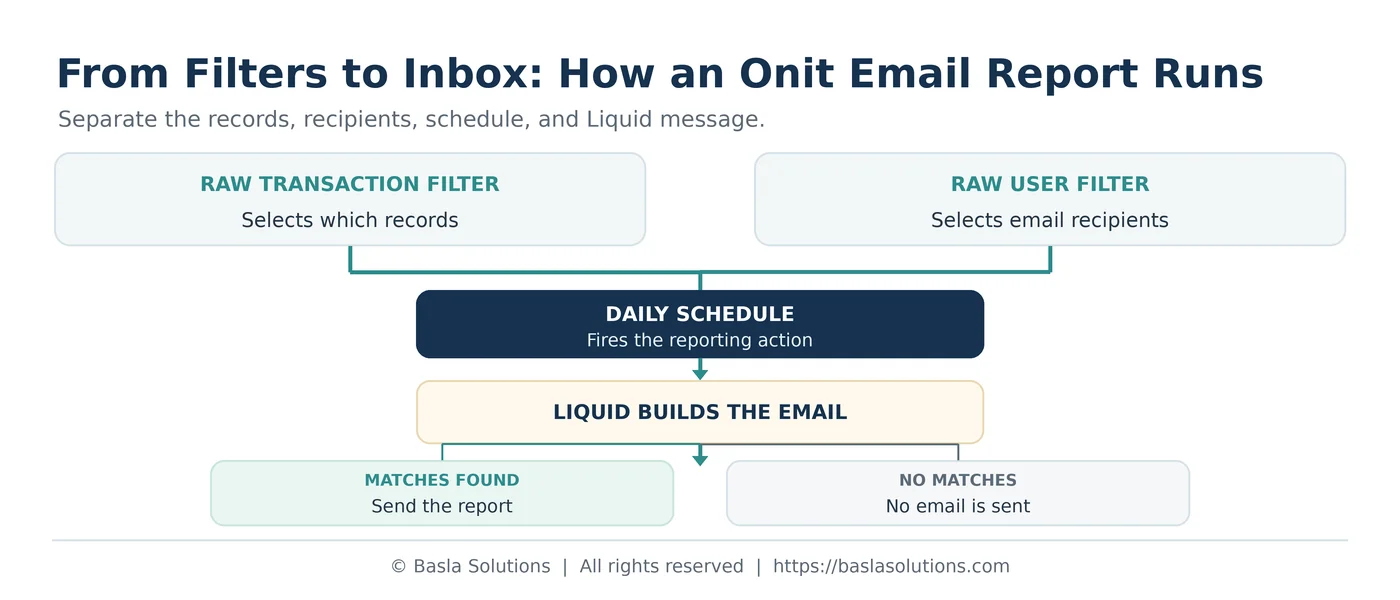
Email-based reports in Onit are built from three configured pieces that work together: a filter that selects the records, a filter that selects the recipients, and a scheduled business rule that fires the reporting action. Each piece answers one question:
- What to report on. A Raw Transaction Filter selects the records, for example every contract in the Review phase or every request untouched for more than a week.
- Who receives it. A Raw User Filter selects the recipients by email address, so the recipient list lives in configuration and is easy to change.
- When it runs. A Daily Schedule business rule fires the reporting action, and the email only sends when records actually match.
The action itself carries the subject and body, both written in Liquid. Keeping the three pieces separate means one filter can feed several reports, and a recipient change never touches the template.
How does Liquid build the body of an Onit email report?
Liquid builds the body of an Onit email report by looping over the matched records, available as a collection called `atoms`, and writing each one into an HTML table or list. A short template does four jobs, and each one has a simple pattern:
- Guard the output. Wrap the body in `{% if atoms.size != 0 %}` so the report only renders when records exist. A missing guard is the usual cause of blank notifications.
- Sort the records. Use an `assign` statement with the `sort` filter, such as sorting by phase, so the most urgent records appear first.
- Loop through them. A `{% for entry in atoms %}` block writes one row per record, with fields such as `{{entry.name}}` and values from parents or roles through relational Liquid logic.
- Format the values. Filters such as `date: “%m/%d/%Y”` and `currency` turn raw values into something readable, and `{{current_host}}` builds a working link back to each record.
Keep the table to four or five columns, because anything wider becomes unreadable on a phone.
Which Onit action should send an email report: Send Report or Multi Report?
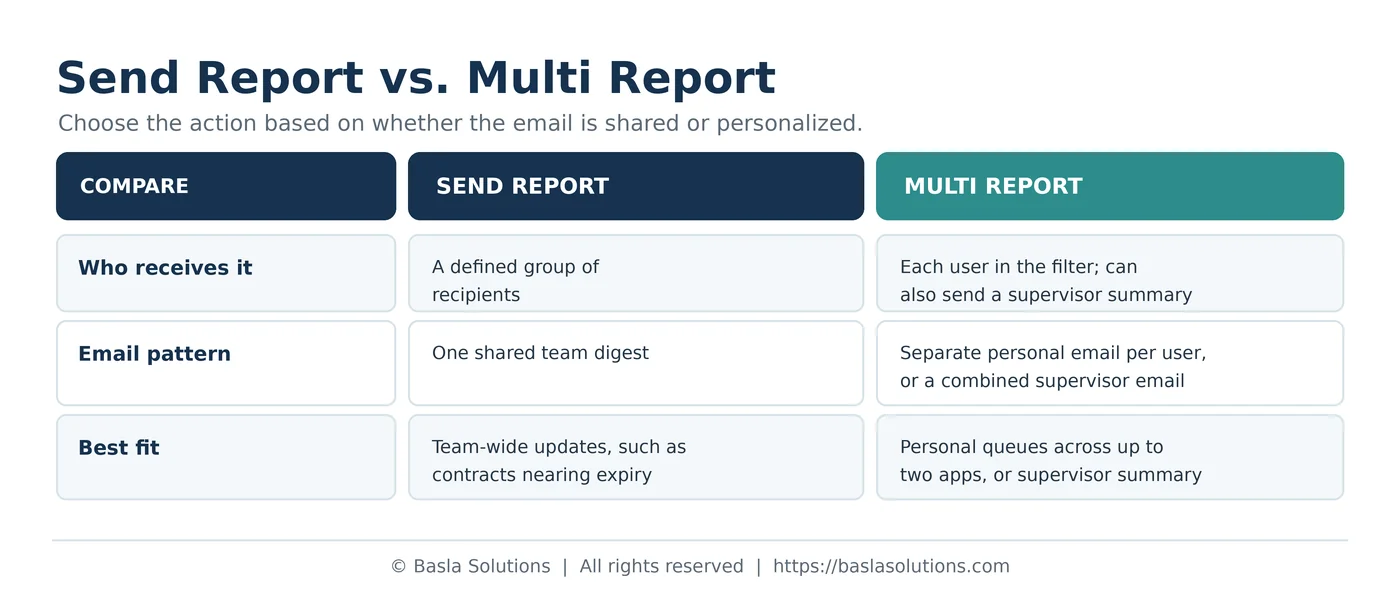
The Send Report action suits a single list sent to a defined group, while the Multi Report action suits personal lists of pending work sent to each user or rolled up for a supervisor. Both run only from a Daily Schedule, and both use Liquid templates. The difference is in what each recipient sees:
- Send Report. One report definition, one Raw Transaction Filter, and recipients from a Raw User Filter. It works well for team digests such as “contracts expiring in the next 30 days” sent to the contracts team.
- Multi Report. The action fires once per user in the Raw User Filter, so a five-person filter produces five separate runs and five different emails. It can cover pending work across up to two apps per email, and it can also produce a single supervisor email that combines each team member’s list.
- Multi Report setup. It needs an uploaded user list on every configuration, supervisor mode depends on columns named exactly `user_email` and `boss_email`, and each supervisor must appear in the list as their own reporter. Miss any of these and the action fails quietly.
Most departments need one of each to start: a team digest and a personal queue. Building ten reports before launch usually means maintaining seven that nobody reads.
How do raw filters decide what goes into an email report?
Raw filters decide what goes into an email report by expressing the selection criteria in JSON, which the reporting action reads at run time. A filter such as “price like 1000 and status like Pending” becomes a short JSON array of conditions. Three practices make filters faster to build and safer to change:
- Copy from a dashboard. Filter a dashboard column, open Filter Info from the column’s dropdown, and copy the JSON it shows. This covers most transaction filters without hand-writing anything.
- Adjust the field types. Copied JSON sometimes needs small edits: change “checkbox” to “boolean”, and change “combo” or “listcombo” to “string”.
- Use Liquid for dates. Relative dates come from Liquid inside the JSON, such as `{{now|subtract_days:6|date:”%m/%d/%Y”}}` for anything older than six days.
Filters are created in the Filters node of the Advanced Designer and can be reused across actions. Name them for what they select, such as “Contracts in Review over 7 days”.
How do you personalize email reports for each recipient?
You personalize email reports for each recipient by referencing `current_user` in the transaction filter, which the Daily Schedule sets to each person in the Raw User Filter as it runs. The same template then produces a different list for every recipient. Two prebuilt filter types handle the most common cases:
- Pending work. A filter of type `user_pending_work` returns the records waiting on the current user, which is the basis of a personal “your queue today” email.
- Participation. A filter of type `user_is_participant` returns the records the current user is involved in, useful for keeping requesters informed about their own matters.
- Recipient list. Both filter types must be paired with a Raw User Filter on the Daily Schedule, because that is what supplies `current_user`.
Personal queues tend to get read far more than team digests, since every row belongs to the reader.
When do scheduled email reports run in Onit?
Scheduled email reports in Onit run nightly through the Daily Schedule business rule, and for most clients Onit’s daily schedule runs at 3am Central time, with the exact time depending on the data center. Daily Schedule rules also accept a filter, which is why they sit at the center of every email report.
That timing works well for morning digests in North America and arrives mid-morning in Europe, but it lands during the working day in Asia-Pacific. For global teams, check the data center’s time zone before promising a “start of day” report. The schedule rule itself follows the same habits as any other, covered in writing business rules in Onit.
How do you test a Liquid email report before go-live?
A Liquid email report is tested by turning on Test Mode for the action, entering a test email address, and running the Daily Schedule manually with Execute. The Liquid Editor cannot preview a list of several matched records, so a real run is the only reliable check. Three test cases cover most of the risk:
- No matches. Run the report when the filter matches nothing and confirm no email sends. A blank email means the size guard is missing or wrong.
- Several matches. Seed five to ten records that should match and confirm every one appears, sorted correctly, with working links.
- Per-user runs. For personalized reports, run the schedule with two or three test users and confirm each receives only their own records.
Plan a day of testing per report, then repeat one live run after deployment.
How should email-based reports be designed so people act on them?
Email-based reports get acted on when they are short, specific to the reader, and one click away from the work. Put the count in the subject line (“4 contracts awaiting your approval”), keep the table to the records the reader can act on, and link each row directly to the record.
Send fewer reports, each with a clear purpose. Agree the purpose of each report with its audience, retire any that nobody acts on, and review the set every quarter. Reports that track volume or aging belong on a dashboard. The inbox is for the work each person has to do today.
Conclusion
Email-based reports are one of the most effective ways to get an Onit app used, because they bring the work to people who would never open a dashboard. Choose Send Report for team digests and Multi Report for personal queues, test with Test Mode and real data, and keep every report short enough to act on.
How Basla Solutions can help
Basla Solutions provides delivery teams for Onit implementation, covering legal technology consulting, business analysis, report and notification design, Liquid template and filter configuration, testing, documentation, and post-go-live support. That includes designing raw filters, building Send Report and Multi Report templates, and proving every report with real data before launch.
The team has delivered matter management and eBilling across more than 10 global jurisdictions and built eight Legal Service Request “Front Doors” for a single enterprise legal department. That delivery discipline takes the weight off your administrators while reporting and notifications are built and tested.
Frequently asked questions
What are email-based reports in Onit?
Email-based reports in Onit are scheduled emails that list the records matching a filter, with a subject and body written in Liquid. They combine a Raw Transaction Filter, a Raw User Filter, and a Daily Schedule business rule that fires the reporting action.
What is the difference between Send Report and Multi Report?
Send Report sends one report definition to a group of recipients. Multi Report fires once per user and can produce a personal list of pending work across up to two apps, or a combined supervisor email built from an uploaded user list.
Why is my Onit email report sending blank emails?
An Onit email report sends blank emails when the Liquid body is missing a check such as `{% if atoms.size != 0 %}`. That check stops the template from rendering when no records match the filter.
What time do Onit Daily Schedule reports run?
Onit Daily Schedule reports run nightly, and for most clients the time is 3am Central. The exact time depends on the data center hosting the instance, so confirm it for global teams.
How do you test an email report without emailing users?
You test an email report by enabling Test Mode on the action, entering a test email address, and running the Daily Schedule manually. The Liquid Editor cannot preview multiple records, so a real test run is needed.
Are raw filters written in Liquid or JSON?
Raw filters are written in JSON, and Liquid can be used inside the JSON for dynamic values such as relative dates. Most transaction filters can be copied from a dashboard column’s Filter Info and then adjusted.
This article is for general information only and is not legal, business, financial or tax advice. For questions about your specific situation, please consult a qualified professional.