


A Power Automate approval workflow lets an in-house legal team on Microsoft 365 take requests through a form, route each one to the right approver, and record the decision, all with tools the company already licenses. For many departments it is the first version of a legal front door: quick to build, familiar to employees, and good enough until volume grows.
This guide covers the design of each part (trigger, approvers, conditions, notifications and record) and the limits that push a team toward dedicated software. It is one practical route into the wider discipline of legal workflow automation, from intake through approval and reporting.
What is a Power Automate approval workflow?
A Power Automate approval workflow is an automated flow that sends a request to one or more approvers, waits for their decision, and then takes the next step based on the answer. For legal teams, that means a request is captured, reviewed by the right person, and recorded without anyone forwarding emails by hand.
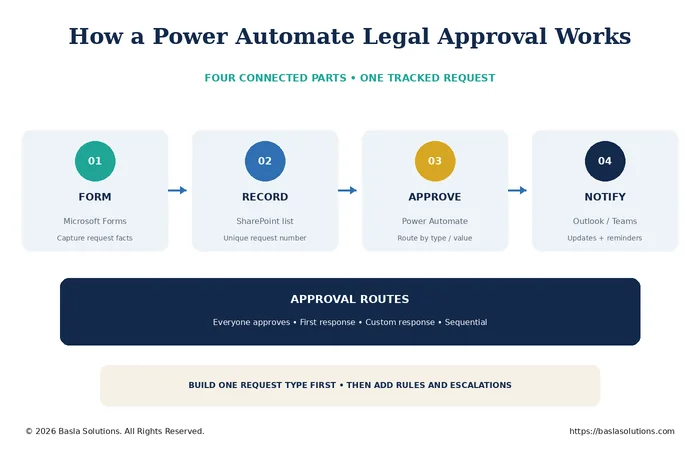
The flow is built around a single approval action that pauses until the approvers respond. Microsoft documents several approval types, including everyone must approve, first to respond, custom responses and sequential approvals in a set order. Approvers respond from Outlook, a Teams card or the Power Automate action center.
For legal requests, the approval types map to familiar situations:
- Everyone must approve. A request that needs both legal and finance to sign off, such as a high-value contract.
- First to respond. A shared queue where any lawyer on the team can approve a routine request.
- Custom responses. Options beyond approve or reject, such as “Needs more information” or “Escalate to GC”, each sending the flow down its own branch.
- Sequential. A commercial lawyer reviews first, then the general counsel signs off.
How do you build a legal request approval workflow in Power Automate?
You build a legal request approval workflow in Power Automate by connecting four parts: a form that captures the request, a list that stores it, an approval step that routes it, and notifications that keep everyone informed. Design each part on paper before building anything, because the routing rules are the hardest part to change later.
The table sets out the main steps, what to configure in each, and a common mistake:
| Flow step | What to configure | Common mistake |
|---|---|---|
| Trigger | Start the flow when a new form response is submitted | Building the form before agreeing the request types and required fields |
| Create the record | Write every answer to a SharePoint list item with a unique request number | Keeping the only copy of the request in an email thread |
| Route | Conditions that pick the approver from request type, value and business unit | Hard-coding approver names into the flow |
| Request approval | The approval type, the details shown to the approver and any attached document | Sending the approver a bare link with no summary |
| Record the outcome | Update the list item with the decision, comments, approver and date | Updating only the requester’s inbox |
| Notify and remind | Messages to the requester at each status change, plus reminders before the deadline | Waiting with no timeout, so a missed approval stalls silently |
Build in stages: one request type, such as NDAs, with a small group for two to four weeks, then the remaining types, then reminders, escalations and reporting.
Two design choices save the most rework later. Store approvers by request type and business unit in a separate SharePoint list, so legal operations can change who approves without editing the flow, and let one status column (Submitted, In review, Approved, Rejected or Closed) drive notifications and reporting.
How do Microsoft Forms and Power Automate work together for legal intake?
Microsoft Forms collects the request, and Power Automate picks up each new response, saves it to the request record and starts the approval. Together they form a Microsoft Forms approval workflow that employees can use from a browser or Teams without any new login.
The form decides how good every later step can be. Ask the questions the approver and the routing conditions need:
- Request type. A required choice field that drives routing, with a short list of five to eight options.
- Business unit and requester. Who is asking and who owns the outcome.
- Value and deadline. The figures the conditions use for escalation and priority.
- Counterparty and document. The other party’s name, plus an upload for third-party paper.
Branching in the form keeps it short. Show contract questions only when the requester picks a contract request, and privacy questions only when personal data is involved. Example field sets for each request type are covered in our guide to intake form examples for in-house legal requests.
Responses sit in the form’s own storage, so the flow should copy each answer into the SharePoint list straight away and save uploads somewhere legal controls.
How do you route a legal request to the right approver?
You route a legal request to the right approver with conditions in the flow that read the request type, value and business unit, then look up the matching approver in a separate list.
- By request type. Contracts to the commercial team, employment questions to the employment lawyer, privacy requests to the privacy lead.
- By value or risk. Contracts above a set annual value threshold add a second approver or go to the general counsel.
- By region or entity. Requests from a subsidiary or country go to the lawyer who covers it.
- Fallback. Anything that matches no rule goes to a triage owner, so no request disappears.
Keep the number of routing rules small at launch, ideally under 15, and add more only when the same exception keeps reaching the triage owner.

Where should the request record live?
The request record should live in a SharePoint list that holds one item per request, with every form answer, the status, the approver, the decision and the dates. That list becomes the single place to check status, report on volume and find past decisions.
Set the list up with care:
- Columns. Request number, type, requester, business unit, value, deadline, status, assigned approver, decision, decision date and comments.
- Documents. Store uploads in a document library linked to the list item, with the request number in the folder or file name.
- Permissions. Requesters see their own items, legal sees everything, and sensitive request types sit in a separate list with tighter access.
- Views. Saved views for open requests, overdue requests and each approver’s queue.
When does a Power Automate legal workflow stop being enough?
A Power Automate legal workflow stops being enough when volume, complexity or reporting needs outgrow what a form, a flow and a list can handle cleanly. The signs are usually a growing number of flows, routing rules nobody wants to touch, and reporting that relies on exports.
Watch for these signals:
- Too many flows. More than five to ten connected flows, or one flow so large that only its builder understands it.
- Long-running requests. A single flow run can wait at most 30 days, so requests that stay open longer need workarounds.
- Matter and contract links. The team wants requests to become matters or contracts in another system, which often needs premium connectors.
- Reporting. Leadership asks for turnaround by type, workload by lawyer and trends over time on a regular basis.
Many departments are reaching this point. A 2025 survey of 256 in-house legal professionals found that 32 percent planned to adopt legal operations and workflow automation tools within one to two years. The options, from dedicated intake tools to IT service platforms, are compared in our guide to legal workflow software for in-house teams. The SharePoint list then becomes your migration starting point.
Conclusion
A Power Automate approval workflow gives an in-house legal team a working front door on tools it already owns: a form that asks the right questions, routing that reads from a maintained list of approvers, a SharePoint record for every request, and reminders that stop approvals stalling. Build it one request type at a time, keep approvers and rules outside the flow, and watch for the signs that volume and reporting have outgrown it.
How Basla can help
Basla provides delivery teams for legal intake and request management software implementation, covering business analysis, request type and routing design, form and workflow configuration, migration from do-it-yourself flows to dedicated platforms, testing, documentation, and post-go-live support. Basla offers legal technology consulting and hands-on configuration through staff augmentation or a Basla-managed delivery unit.
Frequently asked questions
Do you need a premium Power Automate license for approvals?
A Power Automate approval workflow that uses Forms, SharePoint, Outlook and Teams runs on standard connectors, which most Microsoft 365 licenses include. A premium license is needed once a flow uses a premium connector, such as Dataverse, HTTP or a custom connector.
Can a Power Automate approval have more than one approver?
Yes, a Power Automate approval can go to several approvers at once or in sequence. You choose whether everyone must approve, the first response decides, or approvers respond one after another in a set order.
How do you add an SLA reminder to a flow?
You add an SLA reminder by setting a timeout on the approval step and running a parallel branch that waits a set time, then sends a reminder or escalates. Record the due date in the SharePoint list so overdue requests also appear in a saved view.
Can Power Automate send requests to a CLM?
Power Automate can send requests to a CLM when a connector or API is available. Most of those connections use premium or custom connectors, so check licensing and work with IT before you design the handoff.
Who should own the flow, legal or IT?
Legal operations should own the flow’s design, routing rules and approver list, and IT should own the environment, security, licensing and support. Run flows under a shared service account so they keep working when the builder leaves.
How do you report on requests handled in Power Automate?
You report on requests by reading from the SharePoint list that holds every request, either through saved views or a connected dashboard. Track volume by type, turnaround from submission to decision, and open requests by approver.
*This article is provided for general information only and does not constitute legal advice. Basla Solutions provides legal technology implementation and support services and does not practice law.*